Models, files and the Model Builder
Starting a model
(Ctrl+N) opens the New window, with three ways to start:
- Model Wizard
-
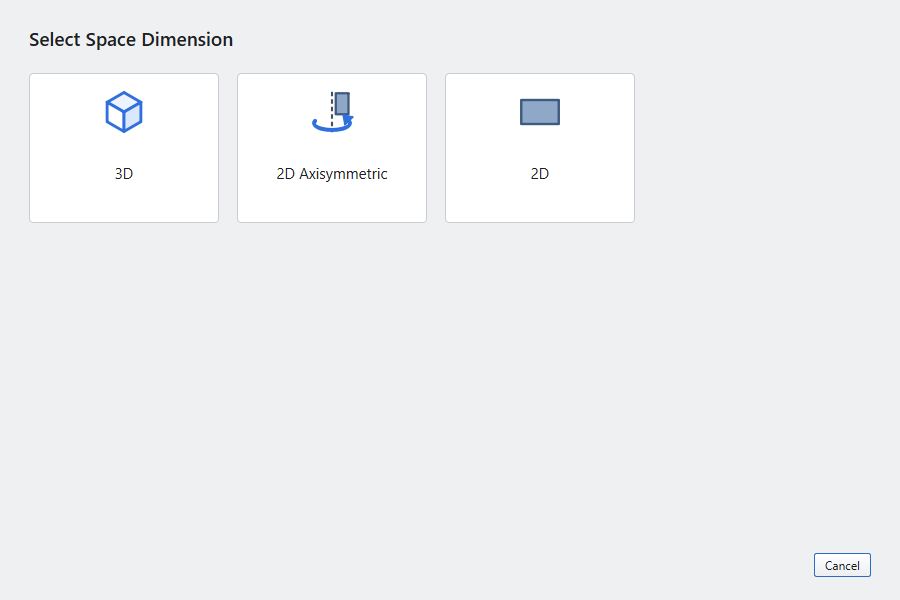
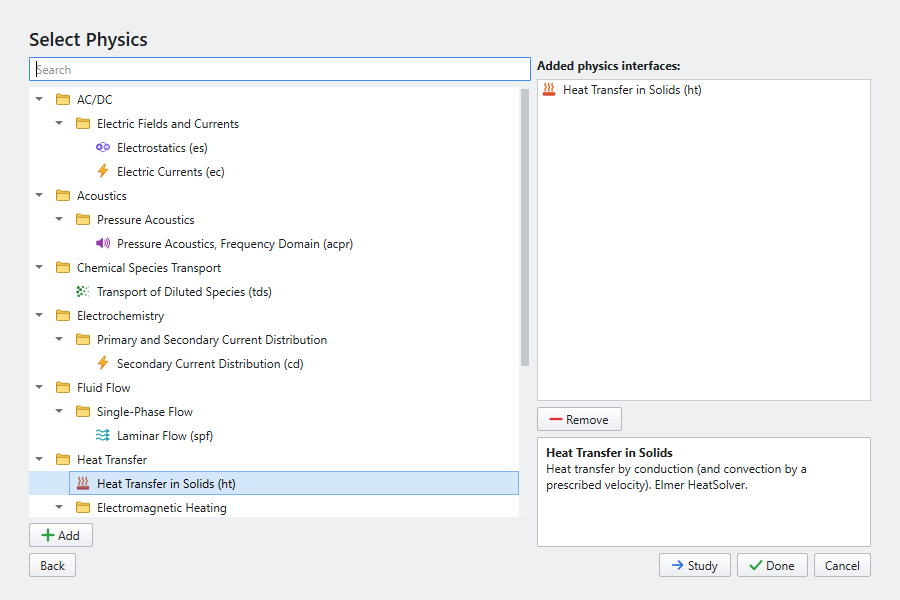
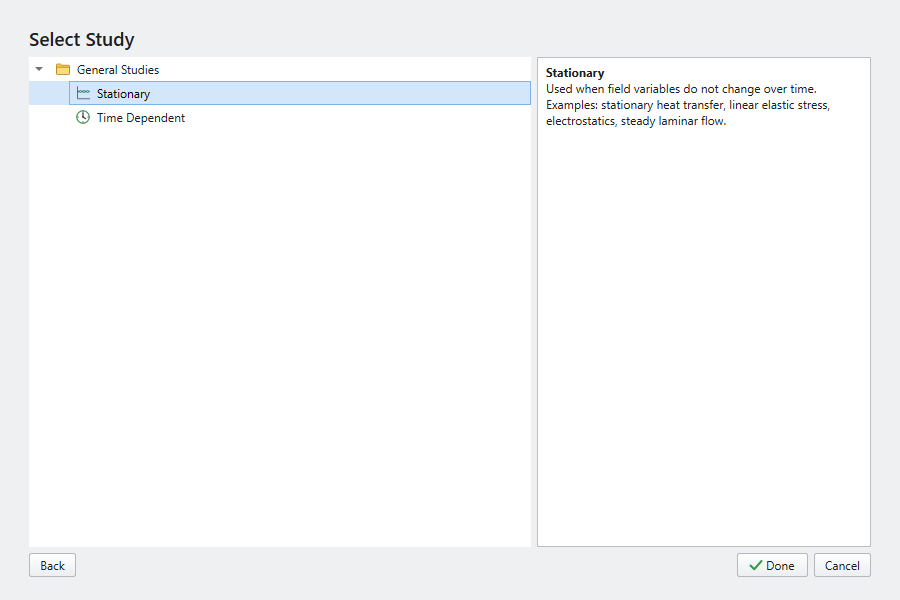
Pick a space dimension (3D, 2D Axisymmetric, 2D), one or more physics interfaces, and a study type. The wizard creates the component, the physics with their default features, an empty geometry, and the study. Several physics can be added in one go. Some entries, such as Joule Heating and Thermal Stress, add two interfaces and their coupling.
- Blank Model
-
An empty tree with Global Definitions and Results. Add a component with , physics with , and a study with .
- Application Libraries
-
Ready-made, solvable models. See Application Library examples.
Components and space dimensions
A model has one or more Components. Each has its own space dimension, definitions, geometry, materials, physics and mesh, and its tag (comp1, comp2, …) is its namespace. Add one with or by right-clicking the root node. The ribbon acts on the active component, the one the selected node belongs to, as in COMSOL. The status bar names it (comp2 geometry: 3 domains).
A component’s space dimension is fixed when you add it:
| Space dimension | Use it for |
|---|---|
3D |
General solids and fields. |
2D |
Planar problems: cross-sections of long objects (plane strain), thin plates (plane stress), planar fields and flows. |
2D Axisymmetric |
Bodies of revolution about the z axis, with coordinates r (x) and z (y). Integrals over the model are taken in the revolved geometry (×2πr) unless you turn that off. |
Several components
Components are separate models that one study can solve together, each with its own mesh and solution:
-
A study step solves the physics interfaces ticked in its Physics and Variables Selection, in every component that has them.
-
Each component’s solution gets its own Solution dataset (
Study 1/Solution 1 (comp2)); plots and evaluations of that dataset see that component. -
In results,
Tis the dataset’s own component’s temperature. Writingcomp1.Tis the same thing in comp1. A name of another component (comp2.Tin a comp1 dataset) is refused with a message, so a result can’t silently show the wrong field. -
One component may use another’s result through a coupling operator:
comp1.aveop1(T)in a setting of comp2 is the average temperature of comp1 (Definitions › Component Couplings of comp1). The study solves comp1 first, evaluates the operator on its solution, and uses the value in comp2. Messages lists the value. Couplings go one way: a circle (comp1 uses comp2 and comp2 uses comp1) is refused before anything runs. A field such ascomp1.Tcannot enter another component’s equations, because the meshes are different. -
Physics interfaces have unique tags across the model: the second Heat Transfer is
ht2wherever it is, so its result names (ht2.tfluxMag) are unambiguous.
Saving and opening
-
(Ctrl+S) and (Ctrl+Shift+S) write an
.esmfile. It is a zip archive with the model (as JSON) and the computed solutions, so plots and tables come back when you open it. The file is written to a temporary name and renamed when it is complete. If saving fails, the model keeps its previous file name. -
(Ctrl+O) and reopen models. You can also pass a file on the command line:
elmerstudio model.esm. -
When you open another model or close the window, Elmer Studio asks about unsaved changes. It also removes the temporary working folder of the model you leave. The title bar’s
*follows undo: undoing back to the saved state clears it, and undoing past it sets it.
What the file holds
| Entry | Content |
|---|---|
|
The model tree: every node and setting. |
|
Each computed solution: |
|
Copies of external files the model reads, such as imported CAD geometry. |
|
The size and SHA-256 of every stored file, and whether solutions were included. |
On opening, Elmer Studio checks every stored file against the manifest. Missing or damaged files are listed in a warning, and the affected solutions are not shown until you compute again. A file saved without solutions opens without that warning. If an imported CAD file is no longer at its original path, the model uses the packaged copy. A file whose entries point outside its own folder (such as ../) is refused.
Working with nodes
Everything in the model is a node of the Model Builder tree:
-
Add nodes from the ribbon or by right-clicking the parent node. New nodes are labelled with a number (Temperature 1, Temperature 2) and get a short name (
temp1) used in expressions and variables. -
Rename with F2; Duplicate with Ctrl+Shift+D; Delete with Delete.
-
Disable (F3) and Enable (F4) a node to leave it out of the model without losing its settings.
-
Reorder with Ctrl+Up and Ctrl+Down. Order matters in the geometry sequence (features build top to bottom) and among physics features (later wins).
-
Undo (Ctrl+Z) and Redo (Ctrl+Y or Ctrl+Shift+Z) cover every change to the tree and to settings.
After a change, the geometry and mesh are rebuilt the next time they are needed (for example when you compute).
Recovery
While a model has unsaved changes, Elmer Studio writes a recovery checkpoint every minute and before every computation. Set the interval in . The checkpoint is removed when you save, open another model or close normally. If Elmer Studio ends any other way (a crash, a power cut, a killed process), the next start opens the Recovery Files window, as COMSOL does. It lists each unsaved model with its time and file name, and names the computation that was running. opens the same window later.
Open opens the model as unsaved, under its file name; the file itself still holds the last saved version, so save to keep the recovered one. The solutions of the interrupted session are reused when they are still there, but a computation that was running may have left an incomplete solution, so compute it again. Delete discards a checkpoint and Later keeps it for the next start.
Checkpoints are stored per user (%LOCALAPPDATA%\ElmerStudio\recovery on Windows, ~/Library/Application Support/ElmerStudio/recovery on macOS, ~/.local/state/ElmerStudio/recovery on Linux).
Exporting
| Command | Result |
|---|---|
A folder with the Elmer mesh and |
|
(Export) |
A PNG of a plot group, at the size you choose. |
(Export) |
Coordinates and one or more expressions at every mesh node (last solution), as CSV. |
(Export) |
The solution ( |
An HTML report: the parameters with their SI values, the component’s nodes, and a picture of each 3D/2D plot group. |
See Results › Export.