The desktop
The Elmer Studio desktop has the same layout as COMSOL’s. On the left, the Model Builder holds the model as a tree, and the Settings window shows the selected node. The ribbon is on top, the Graphics window in the middle, and the information panes underneath.
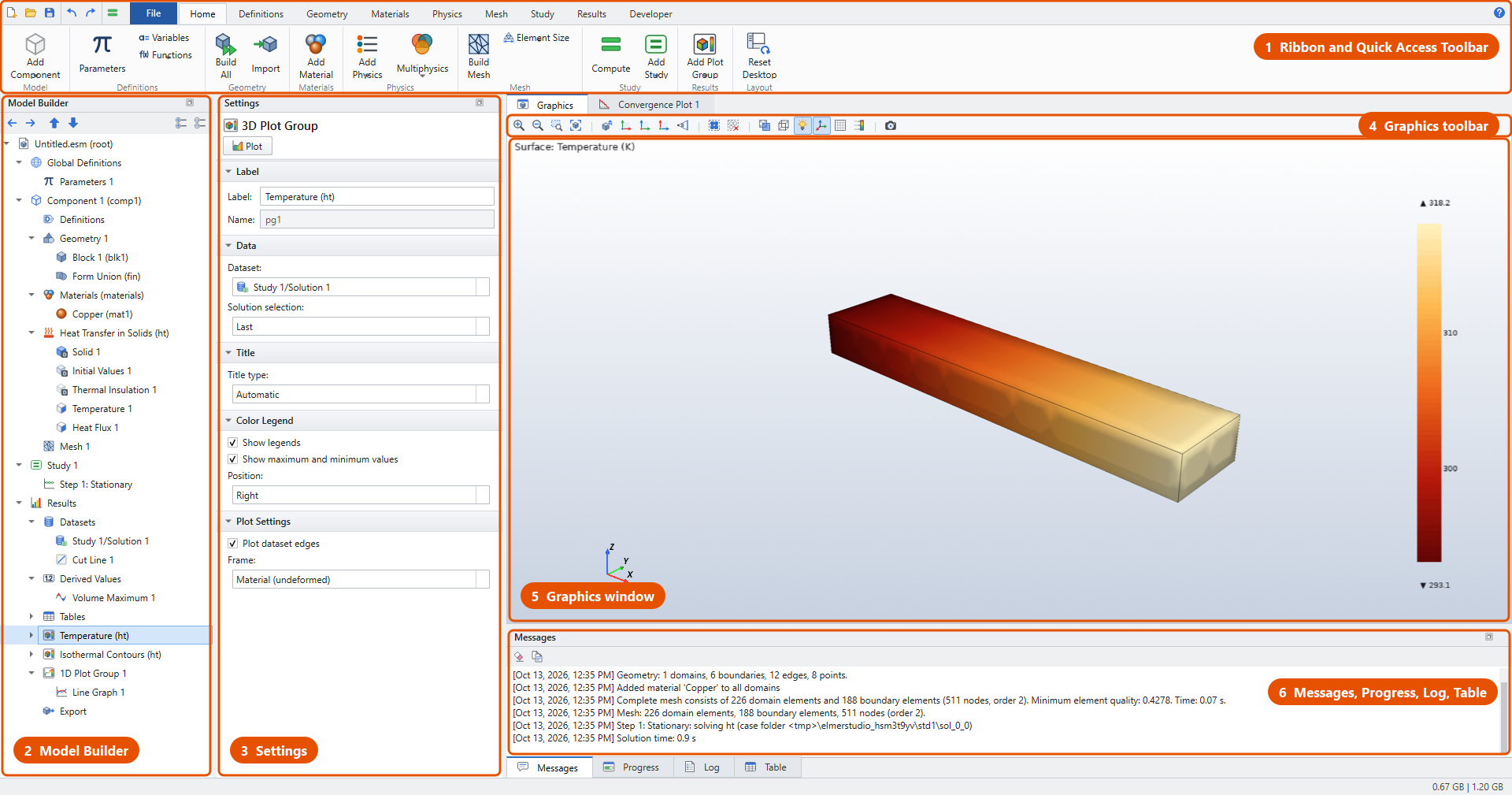
| # | Window |
|---|---|
1 |
Ribbon with its tabs (Home, Definitions, Geometry, Materials, Physics, Mesh, Study, Results, Developer) and the File menu. Top-left is the Quick Access Toolbar: New, Open, Save, Undo, Redo and Compute. Top-right, ? opens this documentation. |
2 |
Model Builder: the model tree. Select a node to edit it; right-click it for everything you can add to it or do with it. |
3 |
Settings: the settings of the selected node, in collapsible sections. |
4 |
Graphics toolbar: zoom, views, selection, transparency and snapshots. |
5 |
Graphics window: geometry, mesh and 3D/2D plots. Where you click boundaries and domains to select them. 1D graphs and polar plots replace it while a 1D plot group is selected. |
6 |
Messages, Progress, Log and Table panes, tabbed together. |
Every window is a dock: drag its title to move it, double-click to float it, or close it. restores the default arrangement of the current layout.
Layouts
As in COMSOL there are two layouts, under :
-
Widescreen Layout: Model Builder, Settings and Graphics side by side.
-
Regular Screen Layout: Model Builder above Settings, with Graphics beside them, for narrow, 4:3 or high-scaling screens.
The first start picks one from the screen’s size. Each layout remembers its own arrangement: windows you move or close in one come back when you return to it, and Reset Desktop resets only the current one. Maximize Graphics (or double-click the Graphics tab) hides the other windows until you do it again.
Text and controls scale with the operating system’s display scaling (100-200 %). sets the base font size of the desktop and the plots (it takes effect at the next start).
Ribbon
The ribbon shows the commands of one stage of the workflow per tab. The Home tab collects the most used commands of all stages. The Geometry, Materials, Physics and Mesh tabs appear once the model has a component. Selecting a plot group adds a contextual tab named after it, with its plots and attributes.
When the window is too narrow for a tab, its groups collapse from the right into one button each, named after the group, whose menu holds all of the group’s commands, as in COMSOL. Nothing becomes unreachable at any width. To minimize the ribbon to its tab names, right-click it and choose Minimize the Ribbon, or double-click a tab. A tab you click then shows its commands until you choose one.
A command that can’t be used right now is greyed out, and its tooltip says why, for example Unavailable: Add a study first (Home > Add Study). The ribbon button, its keyboard shortcut and the Model Builder’s context menu are the same command, so they’re always available together.
| Tab | Commands |
|---|---|
Home |
Add Component, Parameters, Variables, Functions, Build All (geometry), Import, Add Material, Add Physics, Multiphysics, Build Mesh, Element Size, Compute, Add Study, Add Plot Group, Reset Desktop |
Definitions |
Parameters, Variables, Analytic and Interpolation functions, Component Couplings (Average, Integration, Maximum, Minimum), Deformed Geometry (Deforming Domain, Prescribed Normal Mesh Velocity) |
Geometry |
Build All, Import; primitives (Block, Cone, Cylinder, Sphere, Torus, Ellipsoid, Rectangle, Circle, Ellipse, Polygon, Parametric Curve); Work Plane, Extrude, Revolve; Union, Intersection, Difference; Array, Copy, Mirror, Move, Rotate, Scale; Fillet, Chamfer, Convert to Solid; Box Selection; Zoom Extents |
Materials |
Add Material (from the library), Blank Material |
Physics |
Domains and Boundaries menus with the features of the current physics interface, Add Physics, Multiphysics Couplings |
Mesh |
Build Mesh, Element Size, Free Tetrahedral, Free Triangular, Free Quad, Mapped, Size, Distribution, Statistics, Plot Quality, Clear Mesh |
Study |
Compute, Stop, Study Steps, Parametric Sweep, Add Study, Show Default Solver, Clear All Solutions, Show Elmer Input File, Open Case Folder |
Results |
3D/2D/1D/Polar plot groups; Surface, Volume, Slice, Isosurface, Contour, Arrow, Streamline, Mesh, Line, Line Graph, Global, Point Graph, Table Graph, Annotation, Multislice, Radiation Pattern, Directivity; Deformation, Selection, Color Expression; datasets; evaluations; export |
Developer |
Run Python Script, Show Elmer Input File, Export Elmer Case, Elmer Installation |





The File menu holds New, Open, Recent, Save, Save As, Application Libraries, Export Elmer Case, Preferences, Documentation, About and Exit. sets the Elmer installation (see Installation).
Model Builder
The tree has the same structure as a COMSOL model:
-
Global Definitions: parameters and functions shared by everything.
-
Component 1: one geometry with its Definitions (variables, couplings), Geometry, Materials, physics interfaces, Multiphysics, and Mesh.
-
Study 1, Study 2, …: study steps, parametric sweeps and solver configurations.
-
Results: datasets, derived values, tables, plot groups and export.
The toolbar above the tree has Go Back and Go Forward (through the nodes you selected), Move Up and Move Down (Ctrl+Up, Ctrl+Down), Expand All and Collapse All.
Right-click a node to see what you can add to it. Every node also has Rename (F2), Duplicate (Ctrl+Shift+D), Delete (Delete), Disable (F3) and Enable (F4), and Move Up/Down. Disabled nodes are greyed out and ignored when building and solving, as in COMSOL. Default features (such as Thermal Insulation 1) can’t be deleted or disabled. Add a feature after them to override them on some boundaries.
Double-click a node to build, compute, plot or evaluate it, the same as F8.
The Filter field above the tree (Ctrl+L) shows only the nodes whose label or name contains the text, plus the branches that lead to them. Esc clears it. Filtering doesn’t change the selected node.
Node icons carry marks, and the tooltip says what each one means:
| Mark | Meaning |
|---|---|
red cross (lower left) |
An error, such as a material missing a property the physics needs. |
orange triangle (lower left) |
A warning, such as a feature with no entities selected, which applies nowhere. |
asterisk (upper right) |
Edited since it was built or computed: the geometry, the mesh, or a study whose solution is out of date. |
red stroke, grey italic label |
Disabled, or inactive because a node above it is disabled. |
D badge |
A default feature. |
Settings window
The Settings window shows the selected node’s settings in sections that you can expand and collapse. Typical sections:
-
Label: the node’s label (editable) and its name, used in expressions (
aveop1,cd.es1, …). -
Domain/Boundary Selection: which entities the feature applies to. See Selections.
-
Equation: the equation the feature contributes, as COMSOL shows it.
-
the feature’s own settings, with the symbol on the left and the SI unit on the right of each field.
Fields accept expressions with parameters, functions, units and, where it makes sense, the dependent variables (T, phil, …). Results nodes have a Plot or Evaluate button at the top.
Editing a field works like this:
-
What you type is a draft, shown with a dashed border. Enter, or leaving the field, applies it as one undoable edit. Esc puts back the applied value.
-
An expression with a syntax or unit error is not applied. The field turns pink and the reason appears in red under it, for example Not applied: Syntax error. Your text stays so you can fix it. A name that isn’t defined yet is applied and noted in orange, because you may define it later, as in COMSOL.
-
Typing a name, or Ctrl+Space, lists the parameters, variables, functions and constants you can use, with their values and descriptions.
-
In the Parameters and Variables tables, Ctrl+V pastes several rows at once, for example from a spreadsheet, as one undo step. Delete clears the selected cells.
-
After an edit that rebuilds the form, the field you were in keeps the focus and the scroll position stays.
A selection section shows how many entities are selected (3 of 12 boundaries selected). Its Paste Selection button takes typed entity numbers: 1, 3-5 and 8 (separated by commas, semicolons, colons, spaces or "and", with ranges as in COMSOL).
Graphics window

From left to right:
| Button | Action |
|---|---|
Zoom In, Zoom Out |
Zoom by a fixed step. |
Zoom Box |
Drag a rectangle to zoom into. |
Zoom Extents (F5) |
Fit everything into the window. |
Go to Default View |
Isometric view. |
Go to XY / YZ / ZX View |
Look along an axis. |
Orthographic/Perspective Projection |
Toggle the projection. |
Select All, Clear Selection |
For the active selection list. |
Transparency |
See through the geometry to pick hidden faces. |
Wireframe Rendering |
Show edges only. |
Scene Light |
Toggle the lighting. |
Show Axis Orientation |
The x/y/z triad. |
Show Grid |
A grid behind 2D models. |
Show Labels |
Entity numbers of the active selection level (domains, boundaries, edges, points). |
Image Snapshot |
Save the Graphics window as a PNG file. |
Mouse actions are listed under Keyboard and mouse. When the window is narrow, toolbar buttons that don’t fit move to the toolbar’s » menu.
In , the Graphics theme (light gradient, white or dark) and the Image export theme are separate settings. Exported images are white by default whatever the working theme is, so they stay readable in documents. A field that has the same value everywhere is plotted as one color, with that value on the legend’s max/min markers.
Messages, Progress, Log and Table
| Pane | Shows |
|---|---|
Messages |
One line per action: geometry and mesh statistics, solver runs, solution times, warnings and errors (prefixed Warning: and Error:, not only colored). When Elmer stops with an error, its own |
Progress |
The running job: one row per stage, with its progress, convergence, and the Parameter / Value (time step, sweep value, iteration). cancels it. |
Log |
ElmerSolver’s own output, live. |
Table |
The results of evaluations (integrals, maxima, point values, global values) and mesh statistics. Copy them, or export them as CSV. |
While a study runs, a Convergence Plot tab next to Graphics shows the nonlinear and coupling convergence of each Elmer solver.
Windows that open on demand
-
Add Material (): the material library on the right, with a property preview.
-
Model Wizard and New ().
-
Elmer input file (): the generated
.sif, read-only. -
Preferences (): the Elmer installation, font size, graphics and export themes, and recovery checkpoints.
-
Recovery Files (): see Recovery.
Status bar
The right of the status bar always shows the state of the model: Geometry (built, needs update, not built), Mesh, and the current study (not computed, solved, out of date, NOT CONVERGED, failed). A study is out of date when its inputs (geometry, materials, physics, mesh, study settings or parameters) changed since it was computed. Editing a plot doesn’t make it out of date. Click an item to go to its node. While a job runs, the status bar shows its name, elapsed time, stage and a Stop button. In a narrow window the items shorten to their name and a mark (ok, * or !), and the tooltip keeps the full text.